YOUR CART: 0 products
Search Results for 'dummy content'
Home › SUPPORT FORUMS › Search › Search Results for 'dummy content'
-
AuthorSearch Results
-
15/02/2014 at 10:16 AM #62607
Hi Kevin,
I finally got the database to talk to the dummy content. Turns out that the sql wasn’t stored in the same database as wordpress. So you were right. I got the prompt for an update and then saw all the different pages. My last problem is that I am seeing the 404 error page on a few of the links like ABOUT etc. and also when I try to create a new page. Any ideas as to why this may be the case?
Thanks for your help. I think I’m finally getting somewhere.:)
Jeremiah1
14/02/2014 at 11:37 PM #62603Hi Kevin,
I followed all of your steps. I successfully reinstalled wordpress 3.6 and uploaded the dummy content. I then uploaded the sql file and completed the name change to the users. I did everything but still see no request for an update other than a wordpress update prompt to 3.8.1
Regarding the “is the dummy content connected to my wordpress” question. Here have a look at my directory. Is it right? Am I supposed to have two wp-content folders?
From a novice
Thank you so much for your help.
Jeremiah1
Attachments:
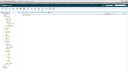
Screen-Shot-2014-02-14-at-23.28.32.png
14/02/2014 at 11:09 AM #62587Hi Jeremiah,
Thanks for verifying your purchase! You’ll see the envato badge below your name.
Judging by your screenshot everything does look good. The dummy content was properly imported into the database and I also think you’ve properly altered your user in the database. What does seem strange is that you were not prompted to update your database when you visited your website.
It almost sounds as though the database that you’ve imported the dummy content into is not the one connected to your wordpress installation. That could possibly be because of the change in the name of the database but quite honestly I am not sure.
To find out whether or not this may be the case. What you could try is removing your current wordpress installation. Then installing a new version of wordpress(3.6) on your server, just like you’ve done when you started the website so we can start over on an installation that has surely not been tempered with.
Once the installation is done,
- install the theme
- upload the dummy content folder to the wp-content/uploads folder
- import the sql dump as described aboveThen go back to your wordpress site to see if it now did change.
The exact process above (installing wp3.6, installing theme, uploading dummy folders, importing sql) is what I’ve done as a test to write the explanation on the sql for you and that exact sequence worked for me. I am very much expecting that it should also work for you.
Kind regards,
Kevin13/02/2014 at 3:07 PM #62582Hi Kevin,
I followed all of your steps but I still see no change in wordpress. I wasn’t asked for an update of the database. The sql file did install however I just can’t see the dummy content.
When i went to edit user and edited those fields, I saw this what looked like an error (screenshot).it appears whenever i try to update that this comes up.
any ideas?
Cheers
Please
Attachments:
13/02/2014 at 11:25 AM #62571Hi Jermiah,
First off, could you please verify your purchase with us by adding your envato purchase code to your theme-dutch.com profile, just so we can verify you as a paying customer.
- Go to your downloads section on themeforest.com, click the download button next to the notime theme and select License certificate & Purchase code. Open the textfile and copy the purchase code.
- Go to theme-dutch.com and head to my-account -> my profile (top-right), then click edit profile, add your envato purchase code down in the verification information and save your profile.____________________________________________________________________________________________________
As for the dummy content I’ve gone ahead and made a test install of wordpress 3.6 to try this on.
I’ve inserted the dummy content folders into my wp-content / uploads
Then we’re off to the phpmyadmin part.
I’ll try to explain it in as much detail as I possibly can. You shouldn’t be required to alter any database names so if you’re able to log onto your phpmyadmin I believe you should be able to do this yourself. I’ve added images for all steps, they do not all fit into one post so the last set of images will be posted in a separate reply here.
- First log into phpmyadmin,
- Then, you will see in the left top the phpmyadmin logo with 4 small icons underneath. Click the icon that says “SQL” (see screenshots 1). You will get a pop-up
- In your pop-up, click the import files tab at the top, then hit choose file and browse for your sql file contained in the dummy content zip. Once selected, click go (screenshots 2)
- Now wait a while until the main window (so not the popup where you uploaded your file) says the import as completed. (screenshots 3)your database had now been populated with the new entries. There’s one thing left to do now though because the inconvenience of an sql dump is that it also includes account data. meaning your previous accounts have been replaced by the dump accounts. Here’s how we’ll give you access to your account back.
- On the left hand side you see a list of all your database tables. Click on the wp_users table (screenshots 4)
- in the top tabs select browse (screenshots 5)
- you will now see a table with three registered users. For one of the users, hit the little pencil icon so you can edit it. (screenshots 6)
- Now you can edit your user, (see Screenshots 7 for an example of how it should look) the only fields you want to alter are:
. User_login (enter your login username)
. User_pass (Enter your password, make sure to select “MD5″ under function)
. User_nicename (enter name)
. User_email (add your e-mail address for the user)
. Display_name (Add the name to be displayed)
Those are all fields you want to alter.
once done, click “go”Your account has now been altered and you’ll be able to log in. You’re done in phpmyadmin
Go back to your website. you’ll get prompted to update the database. Click update database and you should now be done installing the dummy content.I hope this helps you.
Kind regards,
KevinAttachments:
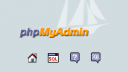
ScreenShots-1.png
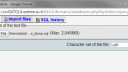
ScreenShots-2.png
Screenshots-3.png
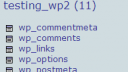
ScreenShots-4.png
12/02/2014 at 8:05 PM #62567Hi Michael,
Thanks for your support again. There is no xml file in the dummy content zip and Kevin will confirm (for some reason unbeknown to myself) why this was not included in the Notime Theme zip. In the screenshot you mentioned the dummy folder (blue) is the extracted dummy zip that came with the theme which contains two folders 2012 and 2013.
I think you are right that Kevin is now best placed to tackle this as you have not installed this theme however i do greatly appreciate your support.
Thanks again
Kind regards
Jeremiah1
Ps - I sure hope i don’t have to reinstall Michael but feel free to PM…… and Kevin if you’re there, nows a good time to come to my international rescue! …. Please?
12/02/2014 at 5:31 PM #62563Jeremiah1,
G’Day again.
I’m at a loss in regard to your problem; as I mentioned at the outset, I don’t own a copy of NoTime, so really all my comments are going on what has been the usual installation of Dummy Content for other Theme-Dutch themes, as well as other themes that are available.
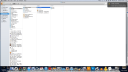
Just curious. In the Screen Shot on your second from last reply [Screen-Shot-2014-02-12-at-00-30-33.jpg] in the third column there is a file names ‘Dummy.zip’ What is inside this file ? Maybe the missing xxx.xml file ?
Anyhow, that’s about all I can help you with here, as I think Kevin from Theme-Dutch is certainly better placed re this theme.
And without wanting to scare you, but with all this mucking around and files being loaded everywhere, and the Database name being changed (that scares me!) in the end, once this issue has been resolved, it may pay you to delete this installation and start again from scratch.
Cheers,
Michael.
ps. I’ll send you a PM if I can work out how form the new members dashboard !
- This reply was modified 2 months, 2 weeks ago by Windycityfella.
- This reply was modified 2 months, 2 weeks ago by Windycityfella.
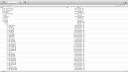
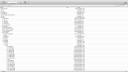
12/02/2014 at 8:18 AM #62560Hi Kevin,
I am grateful for your response this morning. When I go to dashboard, there is only one default page available that was created with the wordpress installation. http://www.jeremygrant.co.uk
As far as the dummy content is concerned, I have completed step two - Upload the content of the dummy folder to your /wp-content/uploads/
What have I done wrong Kevin,
Many thanks for helping me
Jeremiah1
Attachments:
Screen-Shot-2014-02-12-at-08.17.22.png
Screen-Shot-2014-02-12-at-08.15.36.png
12/02/2014 at 7:58 AM #62558Hi Jeremiah,
And thanks Michael, for helping out as well.
If you go to your dashboard and for example go to the pages > all pages menu, do you see many pages in there or is there only one default page available that was created with the wordpress installation?
At this point I am unsure whether the database dump renaming will have any effect on the result (I’m afraid it might, and I’m actually a bit confused by the fact that they did do that). However if there are multiple pages in there that might mean the dummy content was in fact properly installed.
Kind regards,
Kevin12/02/2014 at 12:31 AM #62552Hi mate,
Thanks for your help again….
Just to update you… There has never been a xml file with notice theme.
This is the read me file that came with the dummy content zip. it details 3 steps to follow in order to install the dummy content
NOTIME HOW TO INSTALL DUMMY CONTENT
made by Theme-dutch.com
////////////////////////////////////////////////////////////////////STEP 1
Go to your Database Manager (like PHPMyAdmin), and import themedutch_notime_dump.sql, which is located in the dummy content.STEP 2
Upload the content of the dummy folder to your /wp-content/uploads/STEP 3
Go to your Dashboard and check the Settings > General, and place your own admin, emails, site url, etc…Common issues: the above steps will not work if you install WordPress in a subdomain or subdirectory. You need to edit themedutch_notime_dump.sql and change the image path and other relative urls.
I am pleased to say that with the help of hostgator the sql has now been installed. (they did it) BUT this is what they said….
“Hello there,
No problem at all! We’re happy to help you with this!
At this time, I have imported the database for you. Due to the way cPanel associates database names and username, I had to modify the name of the database to jeremy_notime so if any scripts rely upon the database name being themedutch_notime_dump or themedutch_notime, you may need to update them to use jeremy_notime instead:
[*] Database import of mysqldump file: ‘themedutch_notime_dump.sql’ to database: ‘jeremy_notime’ … Completed! No errors to report.
Please let us know if you experience any issues or have any other questions or concerns.
Regards, ”
I had already completed step 2 so the via FTP but when i went to complete the final step… my site still looked the same. Is this because of the fact that there needs to be changes made to the scripts like it said in the email? If so how do I do that? Hostgator said they couldn’t help me beyond this point and advised that i go to the company who made the theme
finally just to clarify - should the end result be that my page looks similar to the demo site and only needs changing in terms of info and photos etc? I’m guessing, no hoping this is the case and is the purpose of the dummy content zip containing the sql and dummy content.
From a humble beginner,
Jeremiah1
- This reply was modified 2 months, 2 weeks ago by Jeremiah1.
Attachments:
Screen-Shot-2014-02-12-at-00.30.33.png
10/02/2014 at 8:33 PM #62551Jeremiah1
G’Day again.
Oaky, first up, great that you have selected a reputable hosting company - HostGator.
Now, the file that you need to install the Dummy Content has to be a file that is an XML file. So, as I mentioned above, it could be named “NoTime-Dummy-Content.xml” or a similar name. You said that when you unzipped the Dummy Content folder there was another folder in that called “Dummy” and what files are in that folder ? Your screenshot doesn’t show that but from what you’ve said the dummy-content.xml file could be in there.
As for the SQL file - that is the one that you would import into your database, as per my second group of steps. It’s not part of teh WordPress backend, so that is why you got the error.
As I mentioned, I don’t have NoTime, but the importing of dummy content is pretty much the same across the board.
Let me kow how you get on. Alternatively you can post a screenshot of that “Dummy” folder that you mentioned and I might be able to point out the required file.
Cheers,
Michael.
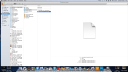
10/02/2014 at 7:18 PM #62546Hi Michael,
Thanks a lot of your reply and trust me basic is what I need!. my webpage is http://www.jeremygrant.co.uk and i am with hostgator.com
Great instructions but here is where i got stuck…
4. A new screen will then appear and ask you to choose the file to import. This will be the Dummy Content file that will be located on your PC’s hard disk where you unzipped the theme files that you downloaded from Theneforest.
5. Clicking on the “Browse” tab will take you to your PC’s files directory for you to find this file (it is probbaly named “notime-dummy-content” or something similar)
The only files I could find in the unzipped dummy content folder were a folder called ‘dummy’ which had more files in it, another file called NOTIME-How-to-setup-dummycontent and another file called themedutch_notime_dump.sql Since i couldn’t find anything else i thought i would try uploading the sql file in import wordpress.
I thought i was getting somewhere when I saw this error message in the wordpress uploads section
Import WordPress
Sorry, there has been an error.
This does not appear to be a WXR file, missing/invalid WXR version number. so I obviously messed up….what file needs to be uploaded for wordpress to do its magic?
thanks so much for your help
Jeremiah1
- This reply was modified 2 months, 2 weeks ago by Jeremiah1.
- This reply was modified 2 months, 2 weeks ago by Jeremiah1.
Attachments:
Screen-Shot-2014-02-10-at-19.07.251.png
10/02/2014 at 6:20 PM #62545Jeremiah1.
G’Day and welcome to the Theme-Dutch community.
Yes, importing Dummy Content into a brand new website can be a bit challenging for a person new to WordPress.Okay, not sure where to start, so maybe I’ll ask a couple of questions and then set out some steps.
1. What is your website URL (name)
2. Where/who is your website hosted with ?
3. Have you installed the NoTime theme itself onto your website and activated it ?Now, I do not have a licence or NoTime (but do have for other Theme-Dutch themes) and I’m assuming that the documentation, etc., is pretty much the same. And I think maybe you have misread the instructions re the Dummy Content, so let me go thru some steps, and apologies if these seem basic.
First up though, I’m assuming that you have a new, clean install of WordPress on your site with nothing else having been installed, except the NoTime theme, which has been activated. If you don’t have, then some of what I’m going to try and walk you thru will impact on that.
When you purchased the Theme (from ThemeForest ?) you would have downloaded the ZIP file to your PC’s hard disk and then UnZipped it. Correct ?
Then to get the Dummy Content uploaded to your website you should do the followng:
1. Log into the Backend of your website - www.(websitename).com/wp-admin
2. Go to Tools > Import and click on the WordPress option.
3. Assuming that this is a new WordPress install, you will need to install the WordPress Importer Plugin. This option should appear as a popup dialogue box on your screen and you should then click on the Install tab. Once you have done this a new screen should appear and you should click on the “Activate Plugin and Run Importer” option.
4. A new screen will then appear and ask you to choose the file to import. This will be the Dummy Content file that will be located on your PC’s hard disk where you unzipped the theme files that you downloaded from Theneforest.
5. Clicking on the “Browse” tab will take you to your PC’s files directory for you to find this file (it is probbaly named “notime-dummy-content” or something similar).
6. Once you have selected tis file a new screen will appear giving you options to import the dummy content - I would just select all the options, including importing all content, files and media and let WordPress do its magic.It may take a few minutes, so be patient, but once done, you are well on your way and all your data should be there.
Okay, now it’s time to import the SQL file to your database. [Tip, make sure that you have logegd out of your backend of Website]
1. You will need to log into your hosting account, and I assume that the company that is hosting your website uses cPanel as its backend dashboard.
2. Once you are viewing your cPanel navigate to the Database section and then select the “myphpAdmin” icon
3. A totally new screen will appear (that will ertainly look confusing the first time - it did to me !)
4. Click on the ‘Import” tab across the top.
5. Click the “Browse” tab in the File to Import section - this will take you to your PC’s files directory and you should navigate to where you unzipped the NoTime file that you downloaded from Themeforest.
6. Find the file that is the SQL file, that is probably names “wp_options.sql and accept/save it.
7. This file will now be displayed in the ‘File to Import’ section. So now click the “Go” tab at the bottom of the page.
8 Once this file has been imported, you can close out of this screen (probably a tab on your internet browser), and you can then log out of your hosting account.Now you can log back into the backend of your website and the Dummy Content should be all there. But. You will need to set up the menus and follow any further instructions on the theme’s documentation re images, etc., when installing Dummy Content.
Good luck and let us know how you get on.
Cheers,
Michael.
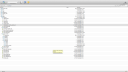
10/02/2014 at 1:56 PM #62543I bought the Notime wordpress theme yesterday and it looks great but I am trying to install the dummy content so that I can change the details etc. I have searched this site top to bottom for guidance as I am a beginner. I have followed the instructions for installing the dummy content (i.e.. transferred the files into the wp content uploads folder. I have transferred the themedutch_notime_dump.sql into wordpress via FTP but where do you actually put this file? In which directory does it go?
I am using version 3.5 of wordpress and the latest version of NOTTIME. AND HAVE NO CLUE HOW TO USE PHPMYADMIN.
PLEASE PLEASE PLEASE HELP!!!!
Attachments:
Screen-Shot-2014-02-10-at-13.55.26.png
07/02/2014 at 7:24 PM #62537In reply to: Is this how is supposed to look like?
Hi Jsoldi,
It mostly looks good,
As for the menu, you may still have to select the right menu in appearance -> menu’s. The theme uses the menu selected there for display. This can however not be transmitted through the dummy content so you’ll want to select the menu there manually.
That should help.
Kind regards,
Kevin -
AuthorSearch Results

